Claude Cowork: Your AI Assistant That Actually Does the Work (Complete Guide 2026)
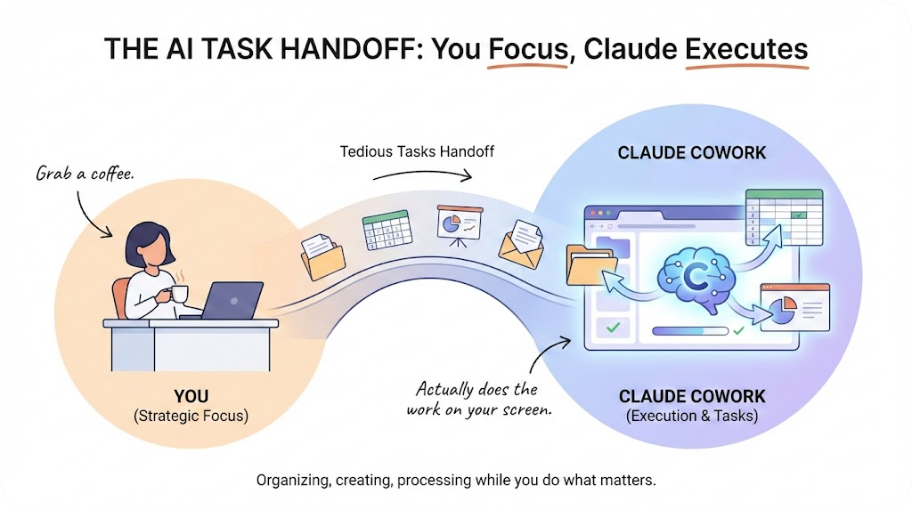
What if you could hand off your most tedious computer tasks to a capable assistant who works independently while you grab coffee? That's exactly what Claude Cowork offers.
What if you could hand off your most tedious computer tasks to a capable assistant who works independently while you grab coffee? That's exactly what Claude Cowork offers. Unlike chatbots that just give advice, Cowork actually does the work on your computer—organizing files, creating spreadsheets, building presentations, and processing documents while you focus on what matters.
This guide shows you real ways people are using Cowork in their daily lives. No coding required. No technical background needed. Just practical examples you can start using today.
What Makes Cowork Different from Regular AI Chat
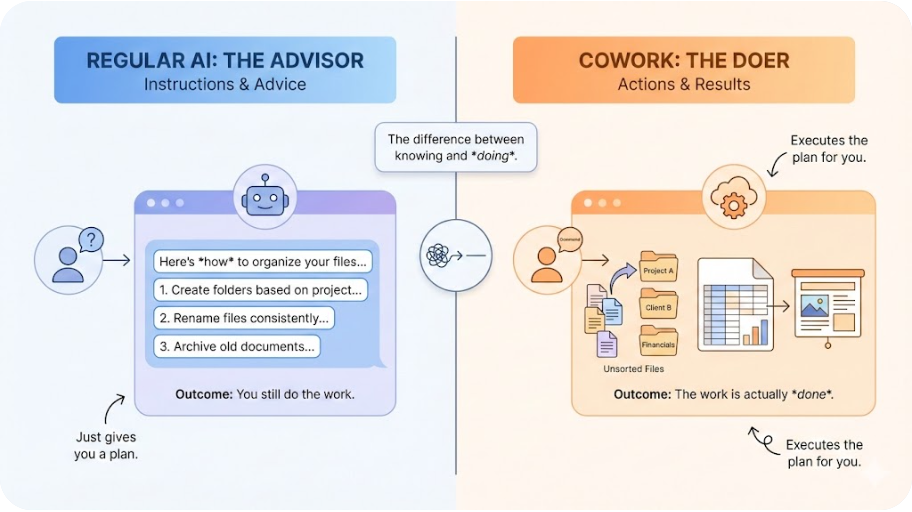
Most AI assistants work like consultants: they give you advice, suggestions, and instructions. You still have to do the actual work yourself.
Cowork flips this completely. You describe what you need done, give it access to a folder on your computer, and it goes to work. It reads your files, organizes them, creates new documents, and delivers finished work.
Think of it this way:
| Regular AI Chat | Claude Cowork |
|---|---|
| "Here's how to organize your downloads folder..." | Actually organizes your downloads folder |
| "Here's a template for an expense report..." | Creates the expense report from your receipts |
| "Here's how to structure a presentation..." | Builds the presentation from your notes |
The difference isn't subtle—it's the gap between getting instructions and getting results.
How to Get Started (5-Minute Setup)
Getting Cowork running takes just a few steps:
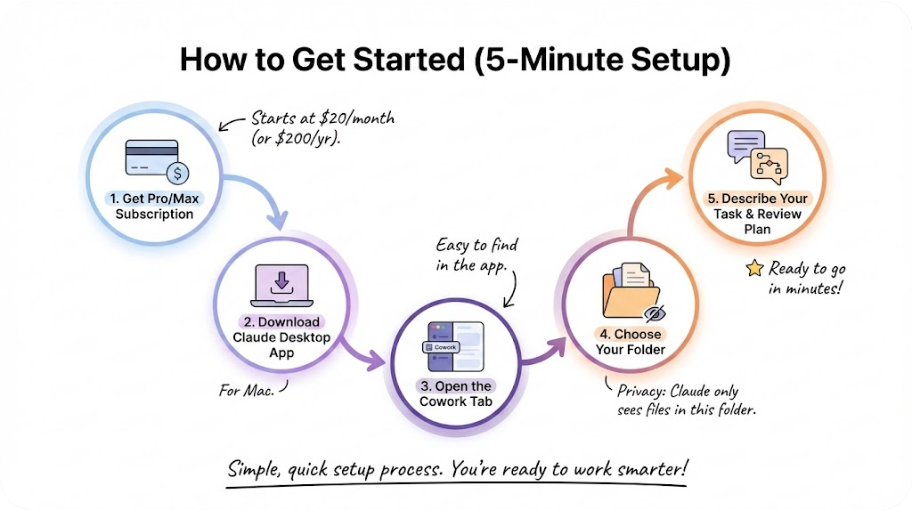
Step 1: Get a Subscription
You need either:
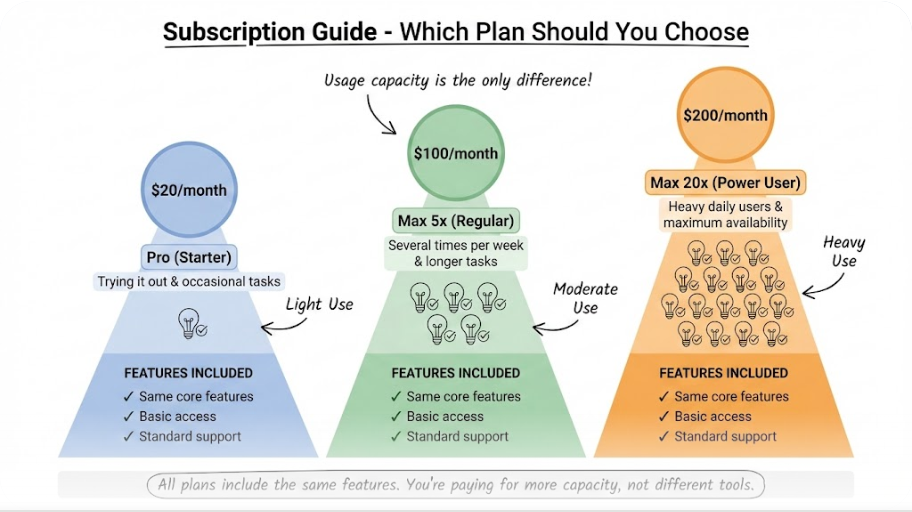
- Pro Plan ($20/month): Good for trying it out and occasional tasks
- Max Plan ($100/month): Better for regular use with more capacity
- Max Plan ($200/month): For heavy daily users
Step 2: Download Claude Desktop
Download the Claude Desktop app for Mac from claude.ai. Currently, Cowork only works on Mac computers. Windows support is coming later.
Step 3: Open Cowork
Launch the app and click the "Cowork" tab at the top. You'll see a different interface than regular chat—this is where the magic happens.
Step 4: Choose Your Folder
Select which folder on your computer Claude can access. This is important: Claude can only see and work with files in the folder you choose. It cannot access anything else on your computer.
Step 5: Describe Your Task
Tell Claude what you want done. Be specific. Then review Claude's plan before it starts working.
That's it. Claude takes over and works until the task is complete.
Personal Life: Real Ways to Use Cowork at Home
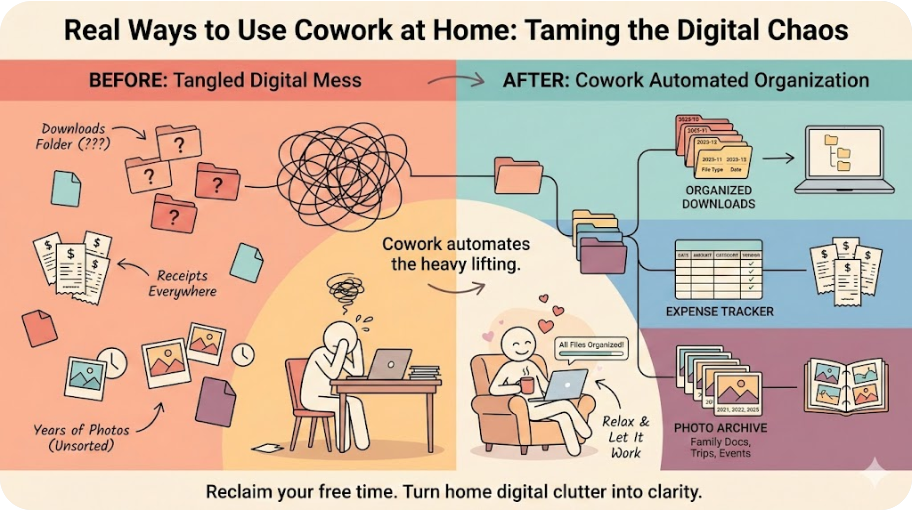
Tame Your Chaotic Downloads Folder
We all have that Downloads folder—hundreds of random files accumulated over months or years. Here's how to fix it in minutes.
What to say to Cowork:
"Organize my Downloads folder by creating these folders: Documents, Images, Videos, Spreadsheets, and Other. Sort all files into the right folder based on file type. For documents, also organize by year using the file's date. Rename any files with unclear names like 'IMG_0001' to include the date they were created."
What happens: Claude scans every file, identifies what it is, creates the folder structure, moves files into the right places, and renames confusing files—all while you're doing something else.
Time saved: What would take an afternoon becomes a 5-minute task.
Turn Receipt Photos into an Expense Tracker
You've got 30 receipt photos scattered across your phone and computer. Tax season is coming. Here's the fix.
What to say to Cowork:
"I have receipt photos in this folder. Create an Excel spreadsheet with columns for Date, Store, Category (food, transportation, office supplies, entertainment), Amount, and Notes. Extract the information from each receipt image. If anything is unclear, mark it as 'VERIFY' so I can check it. Add a totals row at the bottom."
What happens: Claude opens each receipt image, reads the details, creates a proper spreadsheet with working formulas, categorizes each expense, and flags anything it's unsure about for your review.
Time saved: Hours of manual data entry becomes automated.
Organize Your Photo Collection
Years of photos with meaningless names like "IMG_3847.jpg" scattered across folders? Fix it.
What to say to Cowork:
"Organize these photos by year and month. Create folders named like '2024-01 January', '2024-02 February', and so on. Move each photo into the right folder based on when it was taken. For any photos without date information, put them in a folder called 'Undated'."
Create a Family Document Archive
Important documents buried in email, downloads, and random folders? Get them organized.
What to say to Cowork:
"Find all PDF documents in this folder and organize them into categories: Financial (bank statements, tax documents), Medical (insurance, health records), Legal (contracts, agreements), and Personal (receipts, warranties). Create a simple text file that lists every document with its new location."
Professional Life: Using Cowork at Work
Process Meeting Notes into Action Items
You've got pages of messy meeting notes. Your team needs clear action items.
What to say to Cowork:
"Read through these meeting notes from this week. Create a summary document with three sections: Key Decisions Made, Action Items (with who's responsible and due dates), and Open Questions. Format it professionally so I can share it with the team."
What happens: Claude reads through your scattered notes, identifies the important decisions, pulls out action items, assigns them based on context, and creates a polished document ready to share.
Turn Rough Notes into a Presentation
You've got ideas for a presentation scattered in notes, but no time to build slides.
What to say to Cowork:
"I have rough notes for a quarterly update presentation in these text files. Create a PowerPoint presentation with: a title slide, an agenda, key accomplishments from Q1, challenges we faced, our goals for Q2, and a summary slide. Keep it clean and professional."
What happens: Claude reads your disorganized notes, identifies the key points, structures them logically, and creates actual slides with proper formatting. You get a complete first draft to polish.
Research and Summarize Industry Reports
You've downloaded 10 industry reports but no time to read them all.
What to say to Cowork:
"Read through these PDF reports about retail industry trends. Create a one-page summary with: the top 5 trends everyone agrees on, any conflicting predictions, and specific statistics I should remember. Format it as bullet points so it's easy to scan."
Build an Expense Report from Receipts
Business trip receipts need to become a formal expense report.
What to say to Cowork:
"I have photos of receipts from my Chicago business trip. Create an expense report spreadsheet with columns for Date, Merchant, Category (meals, transportation, lodging, other), Amount, and Business Purpose. Group expenses by day. Include totals per category and a grand total. Also note any receipts that might need itemization for expenses over $75."
Prepare for a Job Interview
You've got the job posting and company research but need to organize your thoughts.
What to say to Cowork:
"I have the job description and my resume in this folder, plus some notes about the company. Create a document that: matches my experience to each job requirement, lists 5 potential interview questions based on the role, and suggests talking points for each question based on my background."

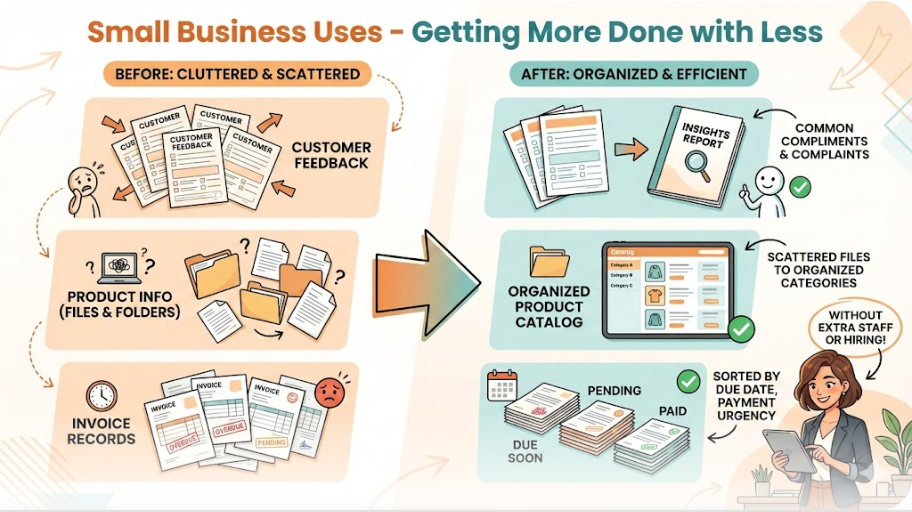
Small Business Uses: Getting More Done with Less
Process Customer Feedback
You've collected feedback forms, emails, or survey responses. Now you need insights.
What to say to Cowork:
"Read through these customer feedback documents. Create a report that identifies: the most common compliments, the most common complaints, specific product suggestions, and any urgent issues mentioned more than once. Include actual quotes as examples."
Create a Product Catalog
You have product photos and details scattered across various files.
What to say to Cowork:
"I have product information in these spreadsheets and folders. Create a clean product catalog document with: product name, description, price, and image reference for each item. Organize by category. Add a table of contents at the beginning."
Manage Invoice Records
Invoices coming in from various vendors need organizing.
What to say to Cowork:
"Organize these invoice PDFs by vendor name. Create a master spreadsheet that lists: vendor name, invoice number, date, amount, and due date. Sort by due date so I can see what needs to be paid first. Flag anything due in the next 7 days."
Tips for Getting Better Results
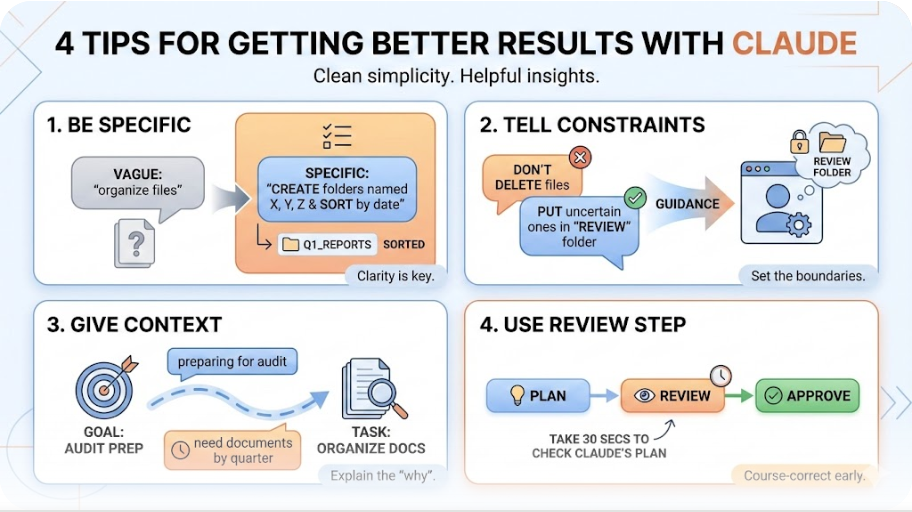
Be Specific About What You Want
The more detail you give, the better the results.
Too vague: "Organize these files"
Much better: "Create folders named 'Clients', 'Internal', and 'Archive'. Move files from 2023 and earlier to Archive. Keep active project files in Clients by client name. Put company policy documents in Internal."
Tell Claude About Constraints
If there are rules or limitations, mention them upfront.
Example: "Important: Do not delete any files. If you're unsure where something belongs, put it in a folder called 'Review Needed' and I'll sort it later."
Give Context About Your Goals
Explain why you're doing this task.
Example: "I'm preparing for an audit next month, so I need all financial documents from 2023 organized by quarter. The auditors will want to find things by date, not by type."
Use the Review Step
Claude always shows you its plan before starting. Use this moment to:
- Check it understands correctly
- Add details you forgot
- Adjust the approach
Don't just click approve—take 30 seconds to review.
Safety and Privacy: What to Know
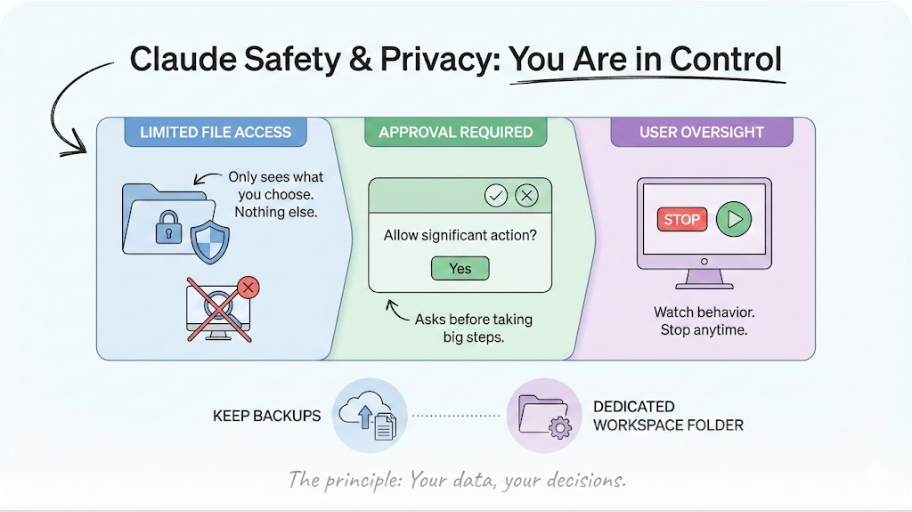
Claude Only Sees What You Share
Claude cannot access anything on your computer except the specific folder you choose. Your other files, applications, browser history, and system folders remain completely private.
Review Before Claude Acts
Before taking significant actions, Claude asks for your approval. You stay in control throughout the process.
Keep Backups of Important Files
For folders containing irreplaceable files, make a backup first. While Claude is careful, mistakes can happen with any automated tool.
Create a Dedicated Workspace
Consider creating a folder specifically for Cowork tasks. Copy files there for processing instead of giving access to folders with original documents.
Watch for Unexpected Behavior
If Claude starts doing something you didn't ask for, stop it immediately. Like any tool, it's not perfect and occasional errors happen.
What Cowork Cannot Do
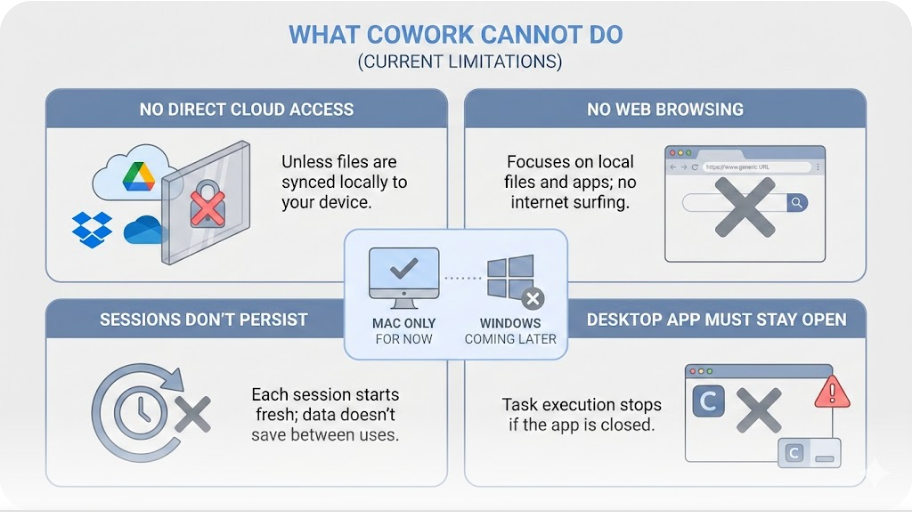
Understanding limitations helps set realistic expectations:
- No access to cloud services directly: It works with files on your computer, not Google Drive or Dropbox (unless synced locally)
- No web browsing in Cowork mode: It focuses on your local files
- Sessions don't persist: Each new session starts fresh without memory of previous tasks
- Mac only for now: Windows support is coming but not available yet
- Desktop app must stay open: The task stops if you close the app
Subscription Guide: Which Plan Should You Choose?
Choose Pro ($20/month) if:
- You want to try Cowork before committing more
- You'll use it occasionally for specific tasks
- You're comfortable with usage limits during heavy sessions
Choose Max 5x ($100/month) if:
- You'll use it several times per week
- You need longer-running tasks without interruption
- You want more capacity for complex multi-step work
Choose Max 20x ($200/month) if:
- You rely on it for daily work
- You run many tasks throughout the day
- You need maximum availability without hitting limits
All plans include the same Cowork features—the difference is how much you can use it.
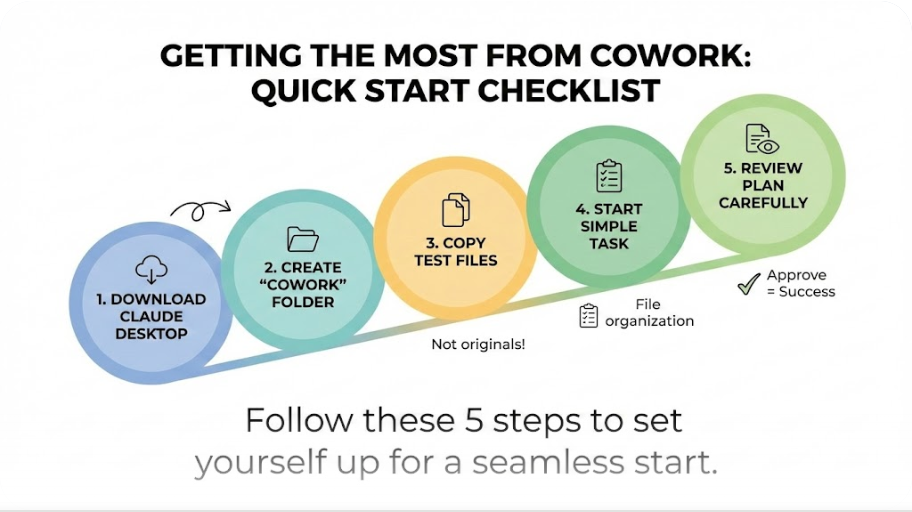
Getting the Most from Cowork: Quick Start Checklist
Start with these steps to set yourself up for success:
- Download Claude Desktop from claude.ai
- Create a "Cowork" folder on your desktop for testing
- Copy some files you want organized (not originals of anything irreplaceable)
- Start with a simple task like file organization
- Review Claude's plan carefully before approving
- Check the results before moving to more complex tasks
- Build up to bigger projects as you get comfortable
Your First Task: Try This Today
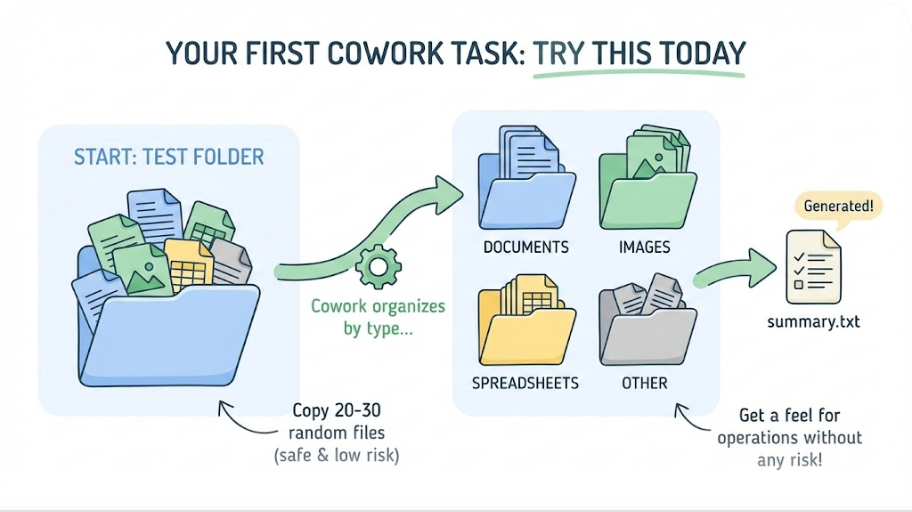
Here's a perfect starter task. Copy 20-30 random files from your Downloads folder into a test folder. Then ask Cowork:
"Organize these files by type. Create folders for Documents, Images, Spreadsheets, and Other. Move each file to the appropriate folder. Create a text file called 'summary.txt' that lists everything you organized and where it went."
This gives you a feel for how Cowork operates without any risk to important files.
The Bottom Line
Claude Cowork changes what's possible for regular computer tasks. Instead of spending hours on file organization, document processing, and data entry, you describe what you need and let Claude handle it.
It's not perfect—you'll want to review results and start with less critical tasks while you learn. But for the time it saves on tedious work, the $20-$200 monthly investment pays for itself quickly.
The best way to understand it is to try it. Start small, build confidence, and gradually hand off more of the work that's been piling up on your to-do list.
No comments yet — be the first to add to the discussion. Comments appear after they’re reviewed.
Want more insights?
Subscribe to get the latest articles delivered straight to your inbox.